In this article
Adding and managing account templates
This article explains how to save an existing survey as an account template, and how to manage the templates, categories and tags in your account’s template library.
Account templates let your organisation reuse its own question sets and wording. Once a survey has been added to the library, anyone in the account with the right role can create a new survey from it.
You need to be an account Administrator to add or manage account templates.
Add a survey to your template library
There are two ways to save an existing survey as a template.
From your Dashboard
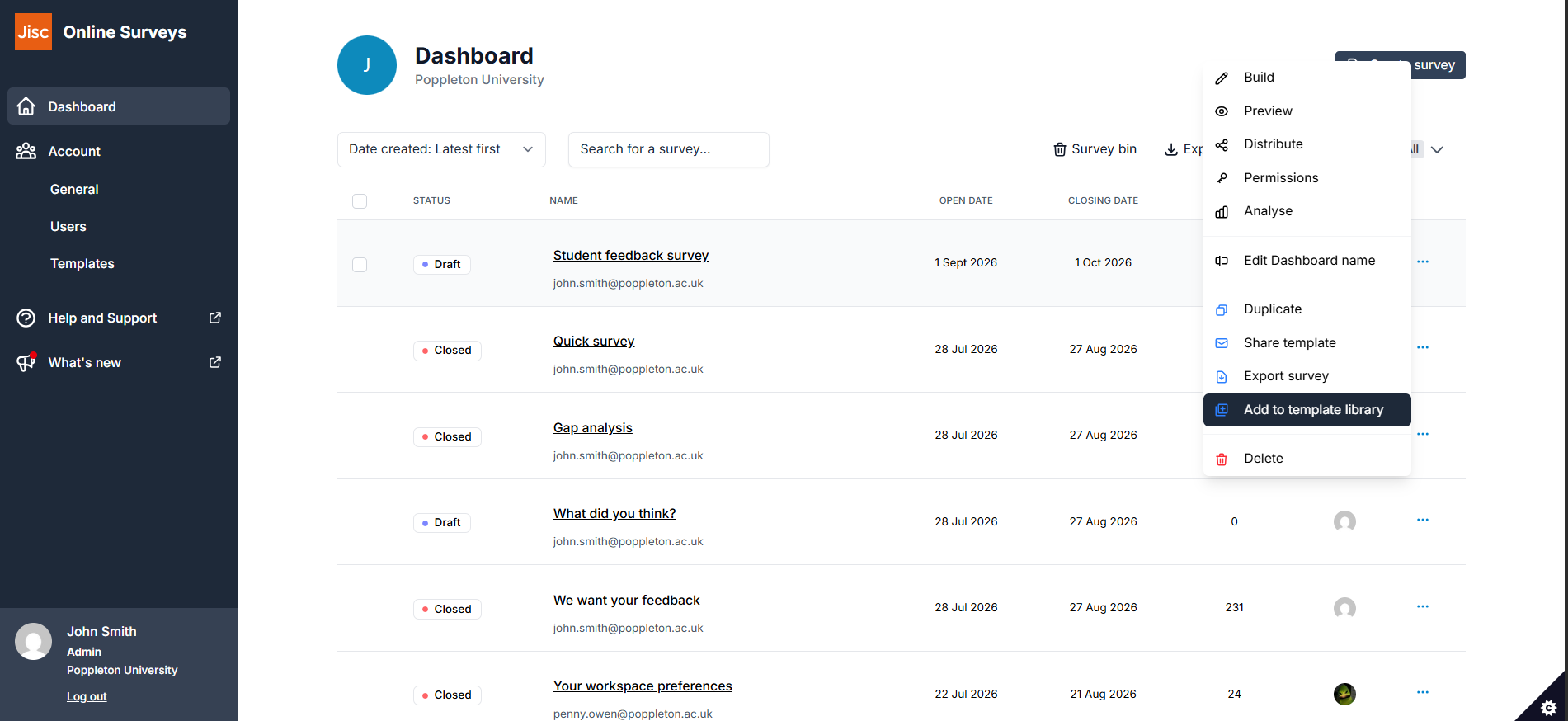
- Go to your Dashboard and find the survey in your survey list.
- Click the Survey actions button (⋯) at the end of the survey row.
- Select Add to template library.
From the Build area
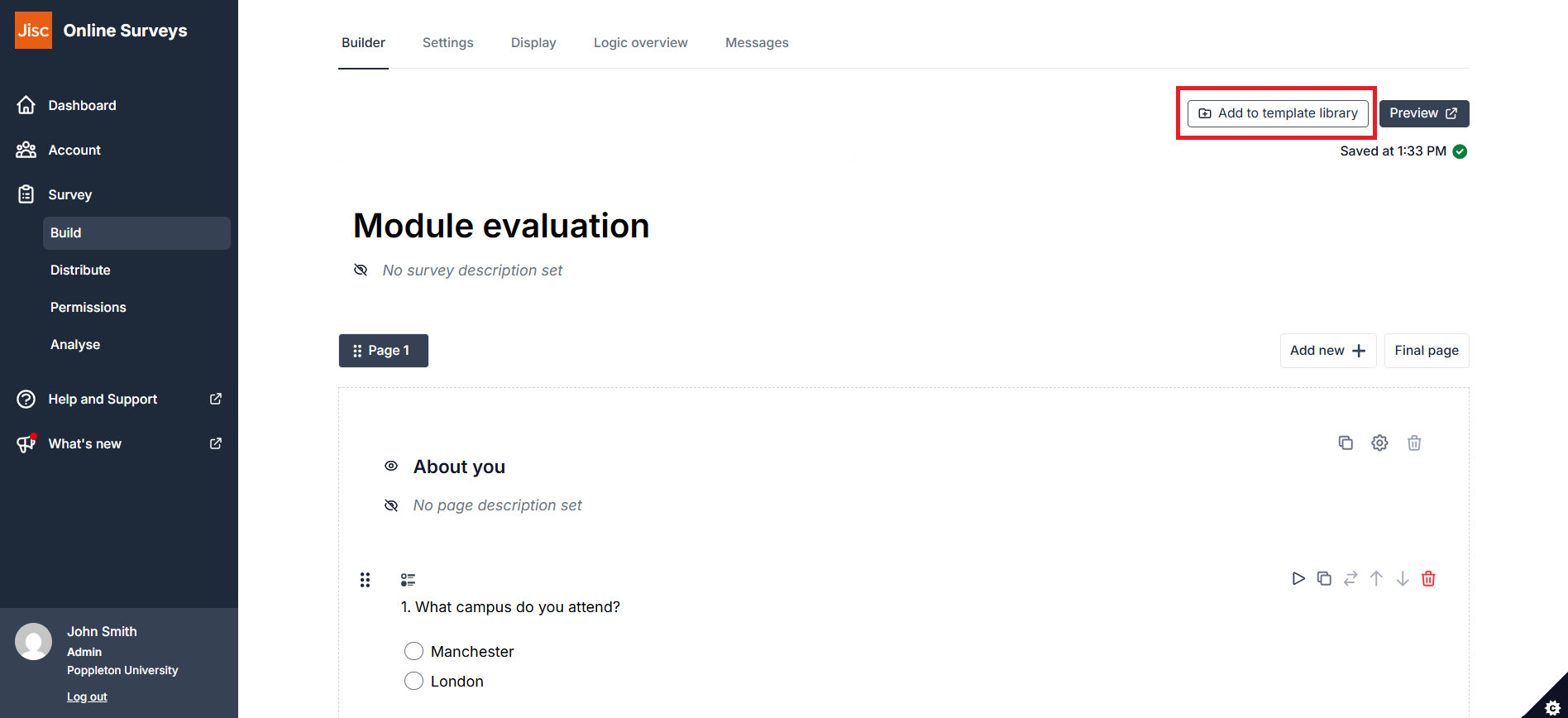
- Open the survey and go to Build.
- Click Add to template library in the top-right of the page.
Complete the template details
Both routes open the Add this survey to your template library dialog.
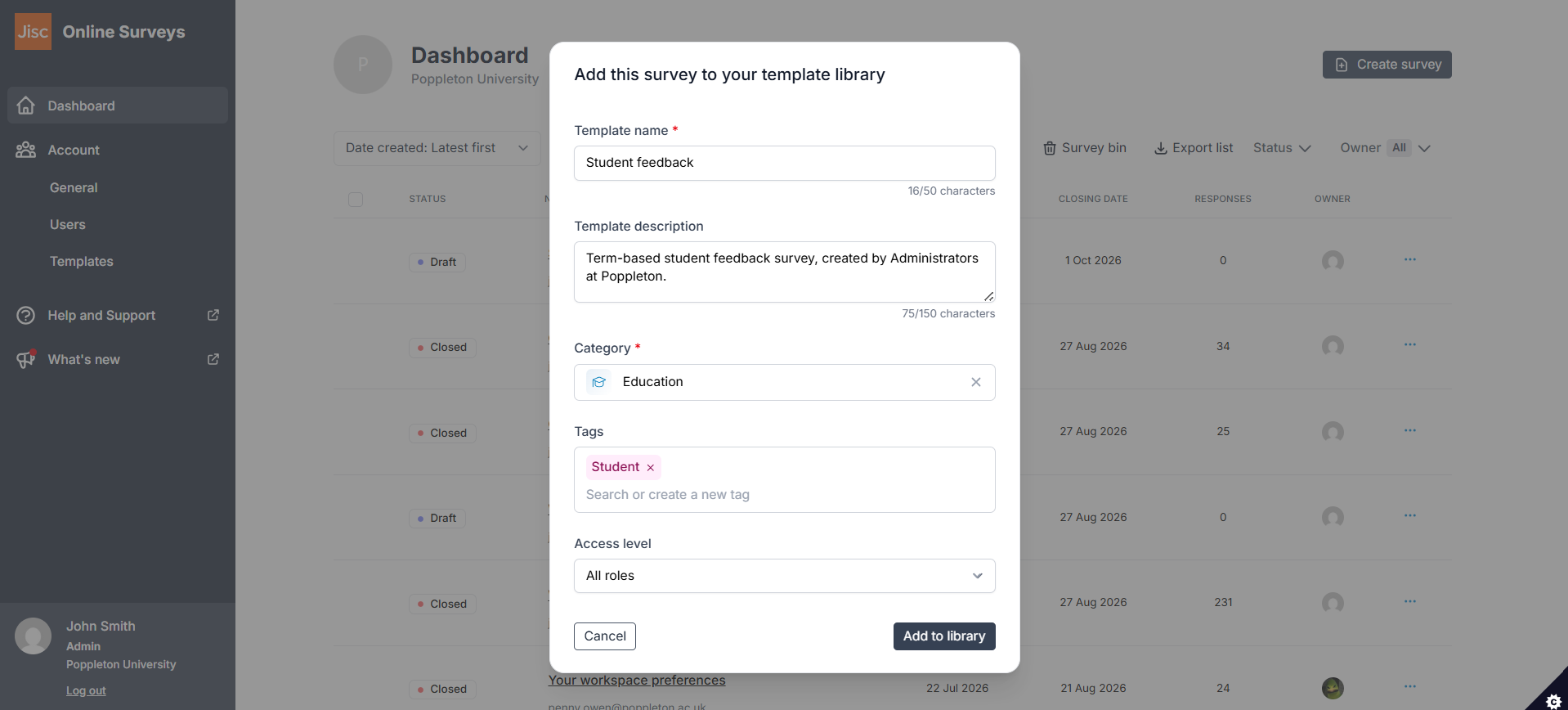
Fill in the following:
- Template name (required) – up to 50 characters. This is the name people will see when browsing the template library, so make it clear what the template is for.
- Template description – up to 150 characters. Use this to explain when someone should choose this template.
- Category (required) – start typing to search the existing categories, or to create a new one. Every template needs a category, as this is how people filter the library.
- Tags – optional. Add as many as you need, either by choosing an existing tag or typing to create a new one. Tags are a second way for people to find your template.
- Access level – choose who in your account can use the template:
- All roles – everyone in the account can see and use the template.
- Administrators – only Administrators can see and use the template. It will not appear in the library for users with the Editor role.
Click Add to library to save the template. Click Cancel if you don’t want to save it.
Manage your account's templates
To see everything in your account’s library, click Templates under Account in the side menu. This opens the Template library management page.
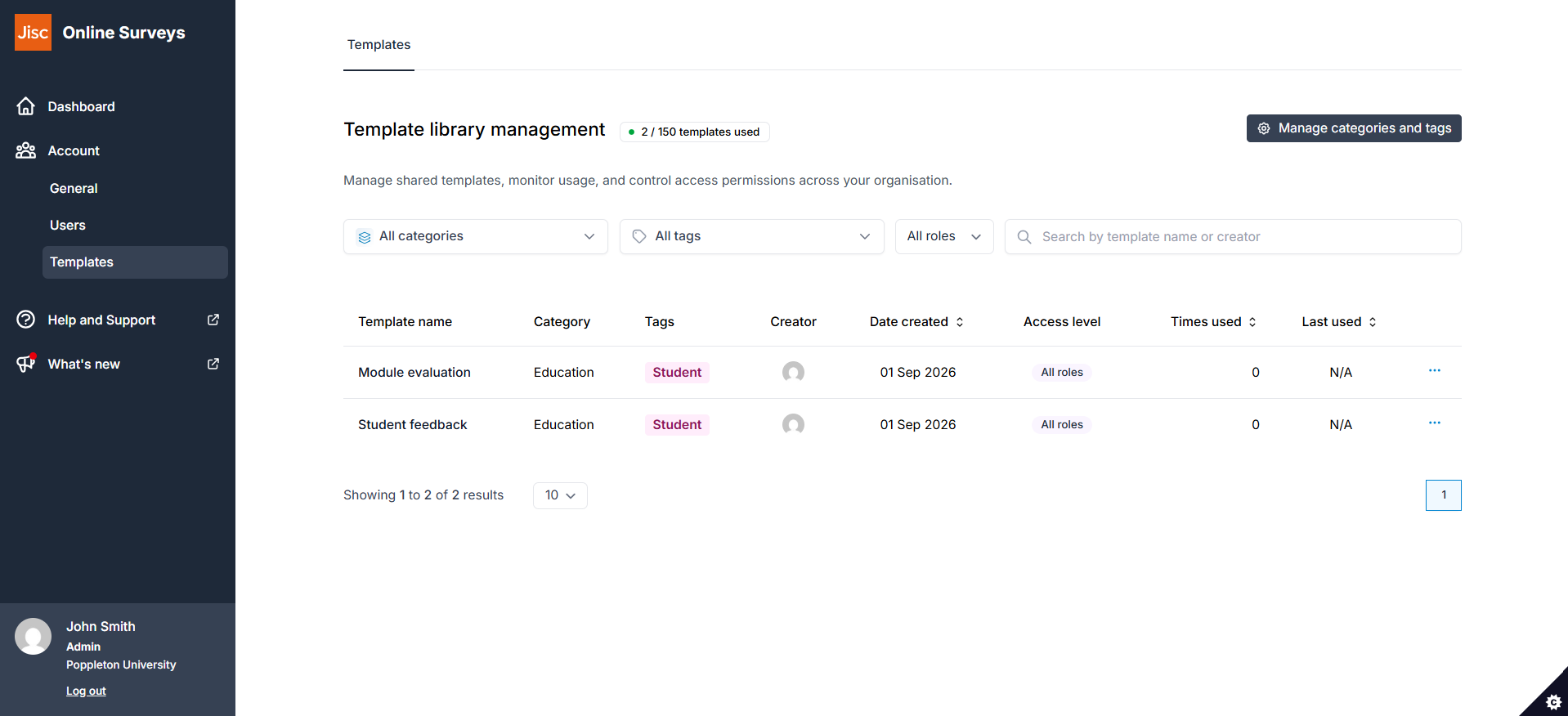
The page lists every template saved to your account, along with its category, tags, creator, the date it was created, its access level, how many times it has been used and when it was last used. You can sort by Date created, Times used and Last used.
The counter beside the page title shows how many templates you have saved out of the limit for your account.
To find a template, use the All categories, All tags and All roles filters, or search by template name or creator.
Template actions
Click the Template actions button (⋯) at the end of a template’s row to:
- Edit the template’s name, description, category and tags.
- Use the template to create a new draft survey.
- Delete the template, removing it from the library.
Remember that editing a template only changes how it is presented in the library. The questions and design can’t be edited.
Manage categories and tags
Categories and tags are shared across your account’s whole library, so it’s worth agreeing a set with your colleagues before you create too many.
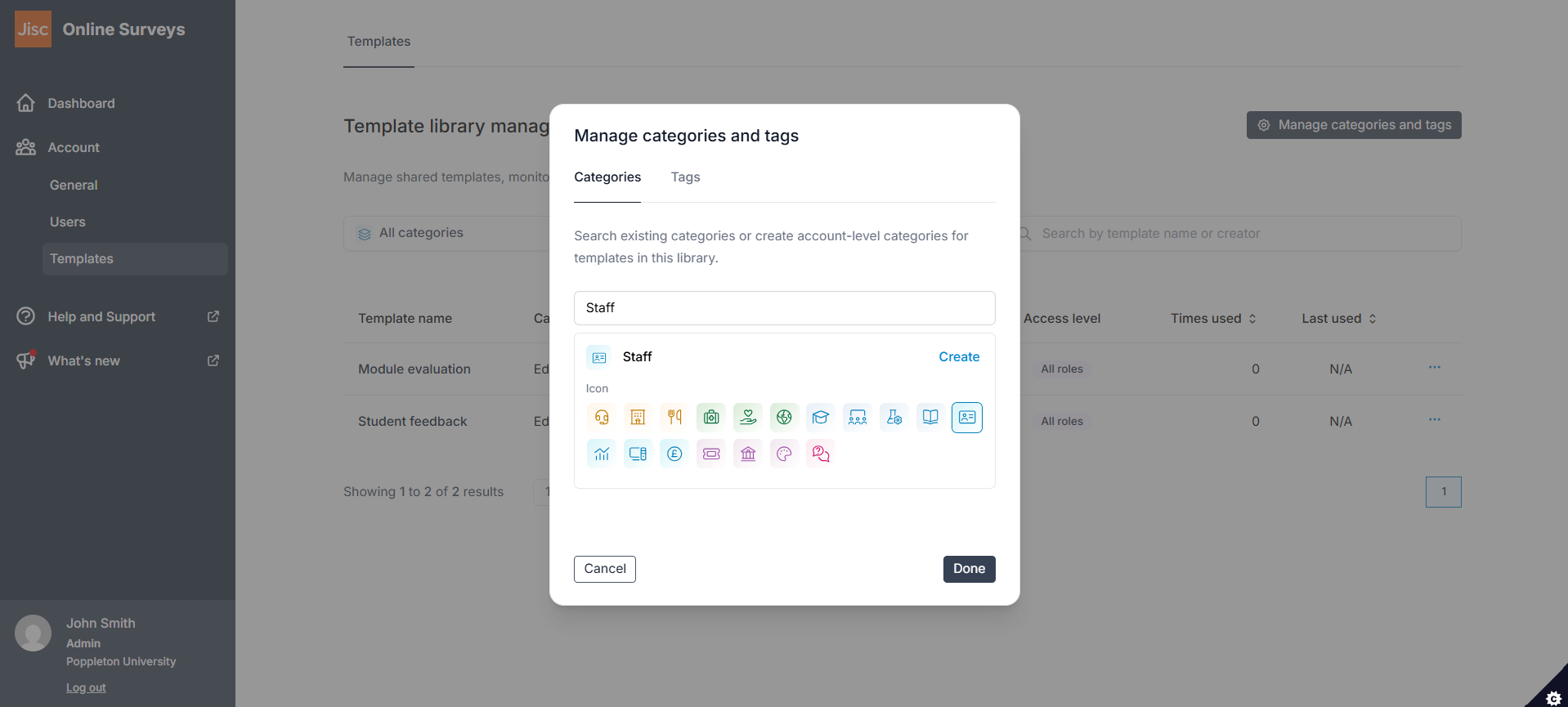
On the Template library management page, click Manage categories and tags. The dialog has a tab for each.
Categories
Categories are the main way people filter templates. Each one has an icon.
- Select the Categories tab.
- Type into the search box to find an existing category, or to name a new one.
- Choose an icon for the category.
- Click Create.
- Click Done when you’ve finished.
Tags
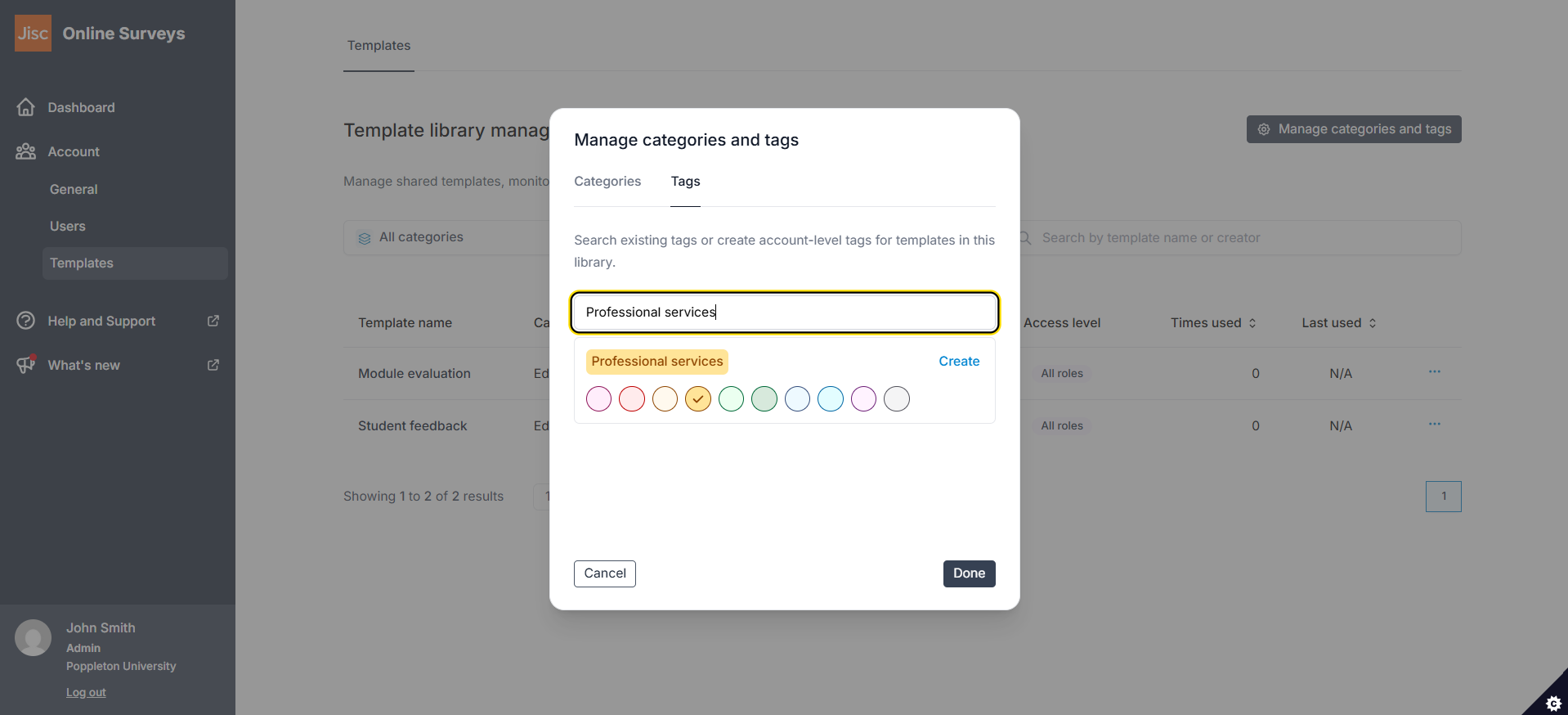
Tags are a more flexible way of labelling templates. Each one has a colour.
- Select the Tags tab.
- Type into the search box to find an existing tag, or to name a new one.
- Choose a colour for the tag.
- Click Create.
- Click Done when you’ve finished.