In this article
Creating a survey from a template
This article explains how to create a new survey from a template, using either an Online Surveys template or a template created by an admin in your own account.
Templates give you a ready-made set of pages and questions that you can edit, so you don’t have to build a survey from scratch.
Choose to use a template
You can start a survey from a template from your Dashboard.
- Go to your Dashboard.
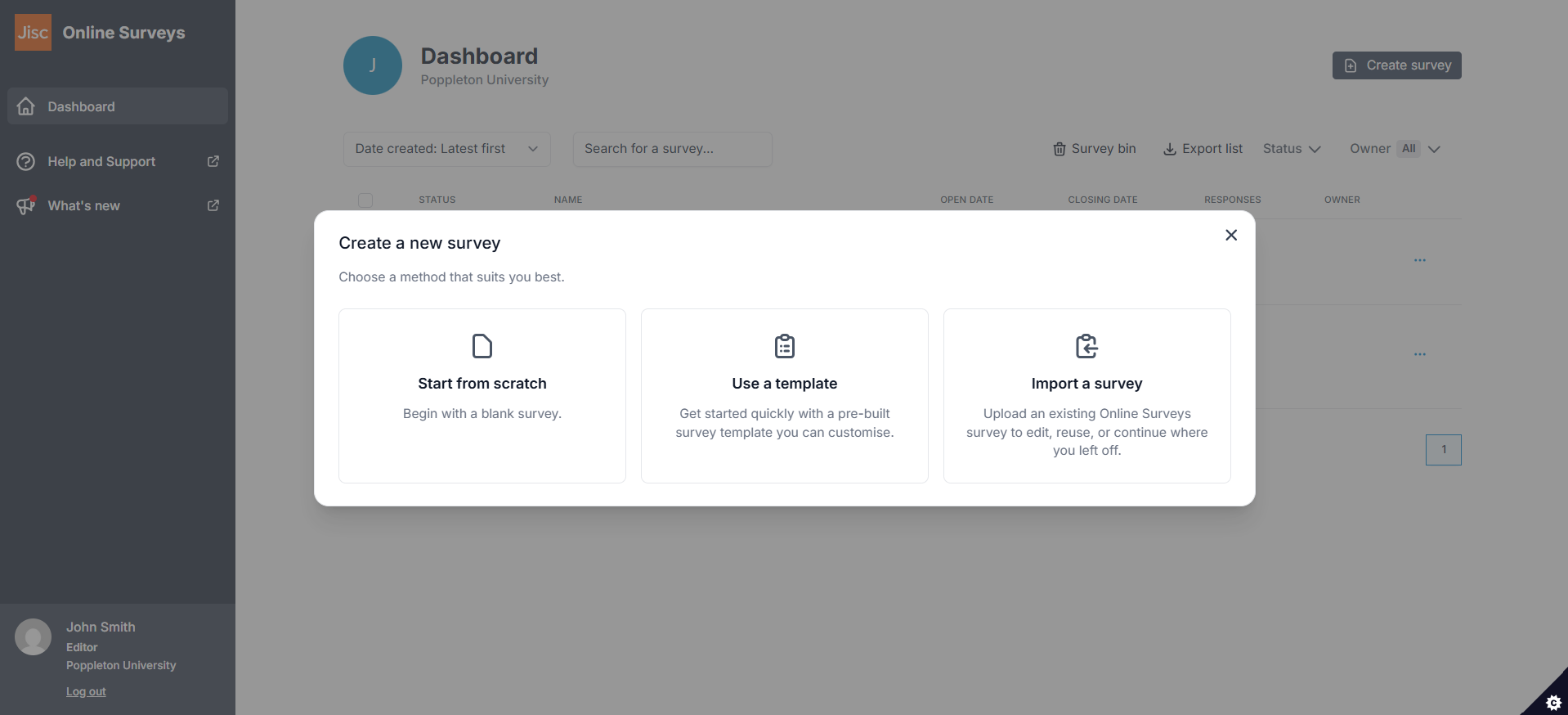
- Click the Create survey button in the top-right of the page.
- Select Use a template.
The template explorer opens with two tabs:
- Online survey templates: ready-to-use templates available across all accounts.
- Account templates: templates created by the admins in your own account.
Use an Online Surveys template
Online Surveys templates are built by the Online Surveys team and are available to every account.
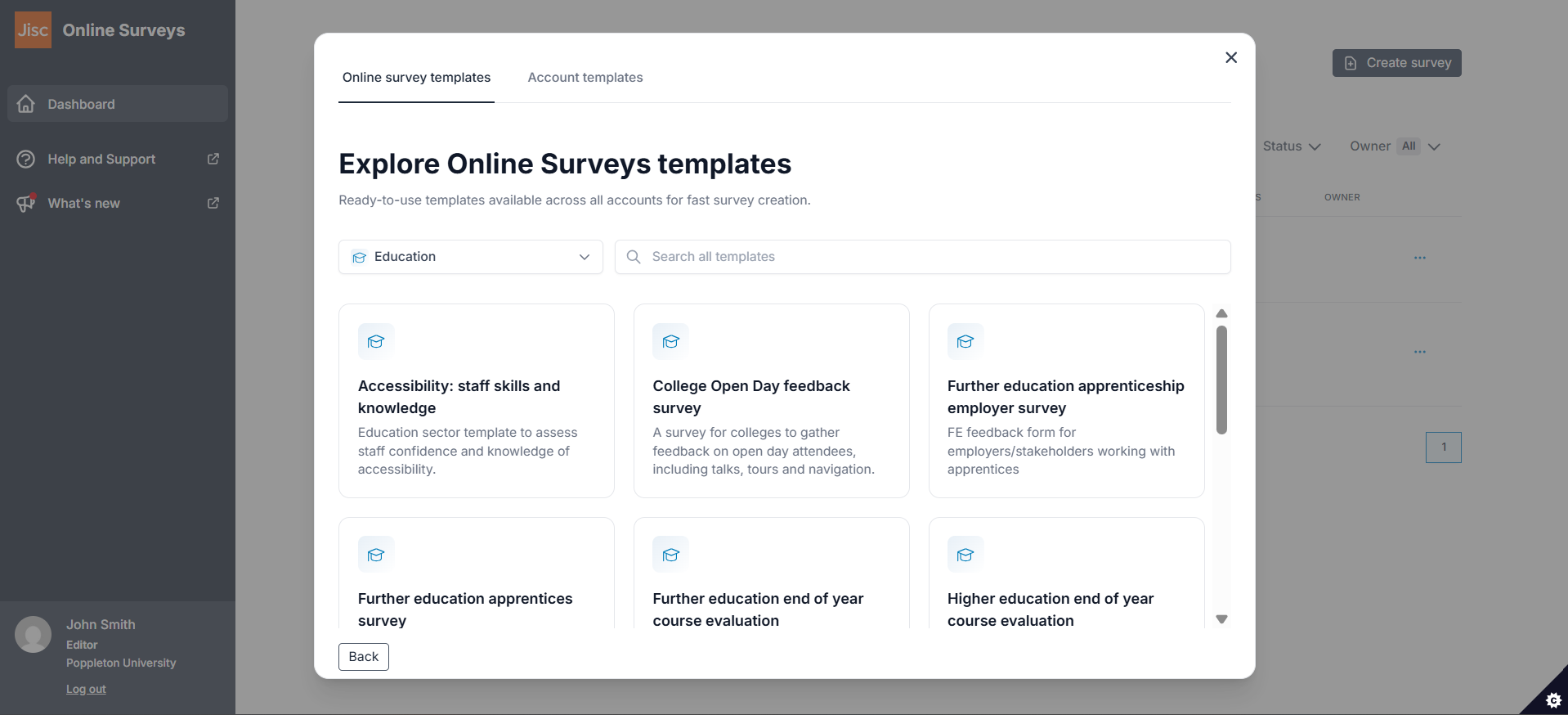
- Select the Online survey templates tab.
- Narrow down the list using the category filter, or type into Search all templates to search by name.
- Hover over a template card and select either:
- Use template: creates a new draft survey from the template.
- Preview template: opens the template so you can check the pages and questions before you commit to using it.
Use an account template
Account templates are created by the admins in your account. They’re a good way to reuse your organisation’s standard question sets and wording.
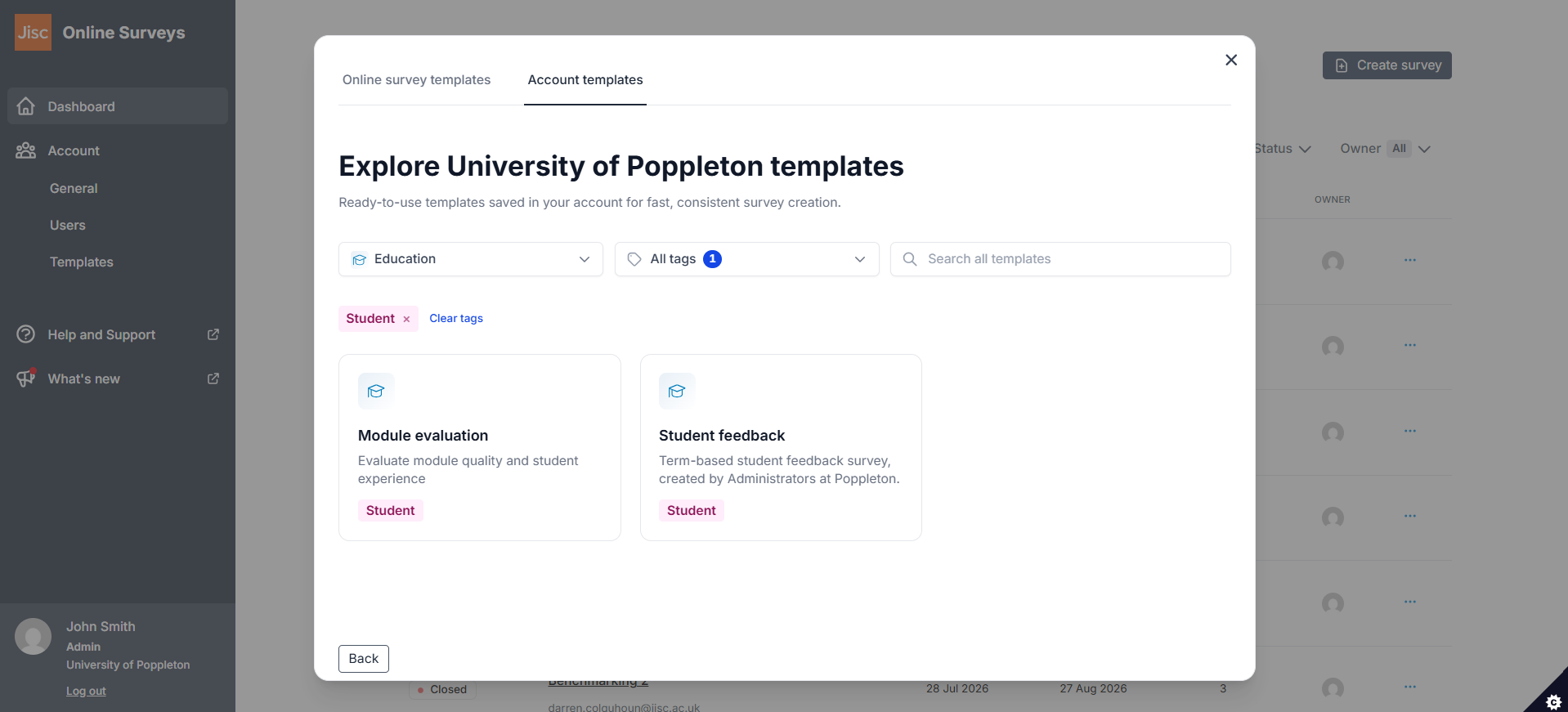
- Select the Account templates tab.
- Narrow down the list using the category or tag filters, or type into the search box to search by name.
- Hover over a template card and select either:
- Use template – creates a new draft survey from the template.
- Preview template – opens the template so you can check the pages and questions before you commit to using it.
If you don’t see any account templates, no templates have been created in your account yet. Speak to one of your account’s admins if you think there should be.