
In this article
File upload question
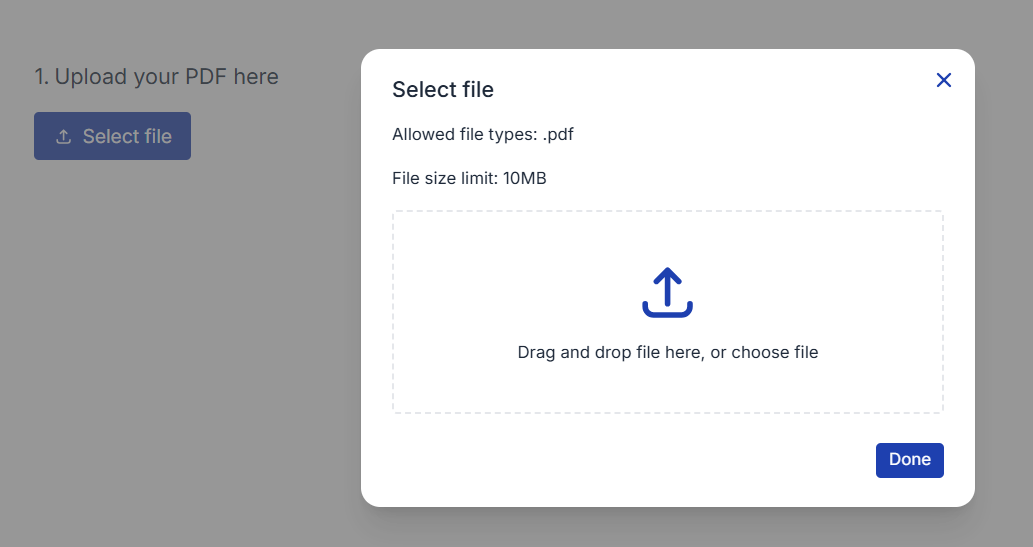
A File upload question lets respondents attach files to their response.
You can allow respondents to attach a PDF or an image.
Adding a File upload question
To add a File upload question to your survey:
- Click the Add new item button on your survey page.
- Select File upload.
- Enter your question text.
- Choose which file types you want to allow your respondents to upload:
- .png
- .jpg/.jpeg
- .gif
Question settings
There’s a handy toggle at the bottom of the question editor to make the question required.
Limits
There are two limitations for File upload questions:
The maximum number of File upload questions is 10 per survey.
The maximum size for each file uploaded is 10MB.
Analysing your results
Analyse overview
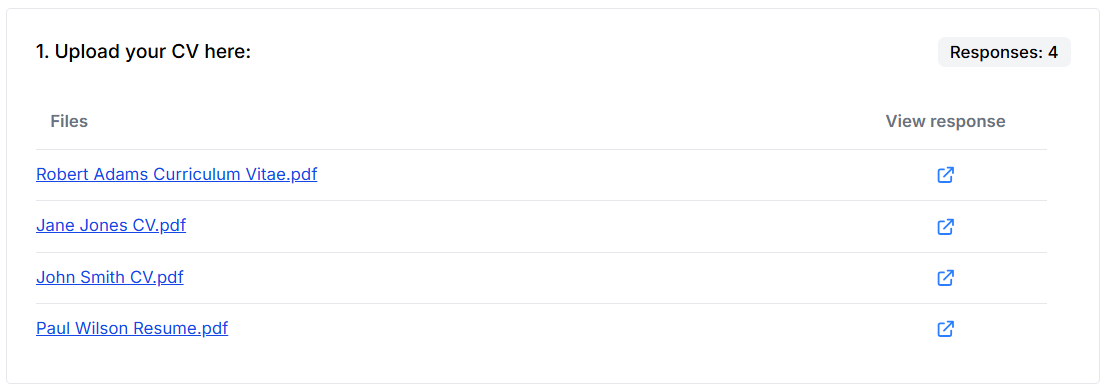
When you view the results of a File upload question, you will find a list of the files uploaded in the order the responses were submitted.
Clicking on the file name will open the file. Or you can choose to open the individual response.
Managing files
Downloading files
You can download individual files that have been uploaded by clicking on the file name, either on the Analyse overview or on the individual response.
Deleting files
It is only possible to delete a file by deleting the entire response.
All files will be deleted upon the deletion of a survey.
Data downloads
Files aren’t included when you download your survey data. Downloads include the names of the files uploaded to your survey, so you can associate each response with the correct file.