In this article
Slider question
A Slider question allows respondents to answer by choosing a value on a scale. This can help you collect ratings, scores, estimates, percentages, amounts, or other numeric responses.
Respondents can move the slider handle to select a value.

Adding a Slider question
To add a Slider question to your survey:
- Click the Add new item button on your survey page.
- Select Slider.
- Enter your question text.
- Set your scale range and format.
- Add text labels to the slider (optional).
- Choose how respondents use the slider.
Set your scale range and format
Use the scale range and format settings to control the values respondents can select.
Minimum and maximum values
Set a minimum and maximum value the respondent can select on the scale. Values can range from -999999 to 999999.
Display the range on the slider
Use Display the range on the slider to show or hide the minimum and maximum values on the respondent-facing slider.
Showing the range can help respondents understand the scale more quickly.
Decimal places
Use Decimal places to choose how precise the respondent’s answer can be.
You can use up to three decimal places.
Prefix and suffix
Use Prefix and Suffix to add characters / units before or after the selected values (e.g. £ or %).
This can help respondents understand what the value represents.
Segments
Use Segments to control the number of steps on the slider, separated my tick marks,
For example, a slider from 0 to 10 with 10 segments allows respondents to move through the scale in evenly spaced steps.
Set to 1 segment to hide the tick marks.
Set your scale range and format (optional)
You can add optional text labels to explain the start and end of your scale.
Text labels can make the scale easier to understand, especially when the numeric values alone may not be clear.
Choose how respondents use the slider
You can choose how respondents interact with the Slider question.
Respondents can see their selected value
Switch this toggle on to display the selected value above the slider handle.
Respondents can type a value or use the slider
Switch this toggle on to allow respondents to type their answer.
Providing a text input alongside a slider is a key accessibility requirement under WCAG 2.2, specifically for compliance with 2.5.7 Dragging Movements and for general usability 2.1.1 Keyboard access.
This method allows users with motor impairments who cannot perform precise drag-and-drop actions, as well as keyboard-only users, to enter exact values.
Starting position of the slider handle
Choose where the slider handle appears when the question is first displayed.
For balanced scales, Middle is often a suitable default.
Question settings
There is a handy toggle at the bottom of the question editor to customise the question in the following way:
You can open the Question properties menu by clicking the cog icon in the bottom right of the question editor to customise the question in the following ways:
Analysing your results
Analyse overview
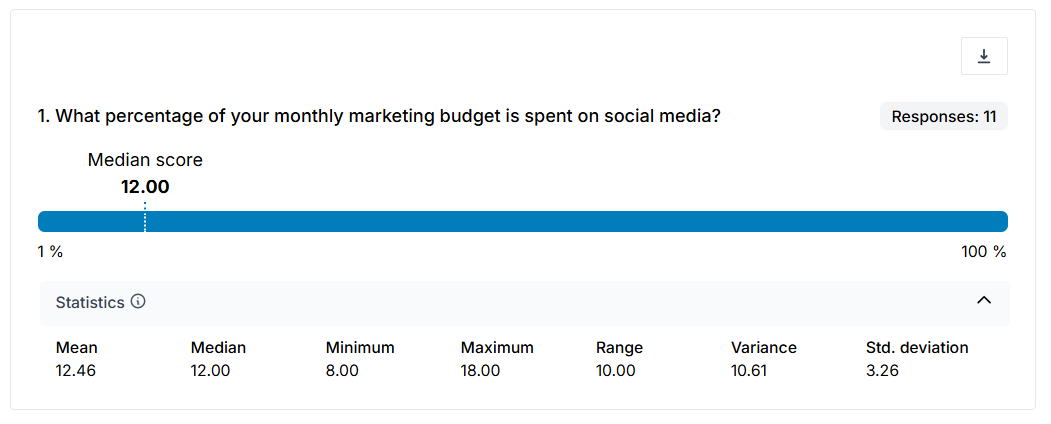
When you view the results of a Slider question, Online Surveys automatically calculates a median score, which is displayed on a scale chart.
A fuller set of statistics is displayed below the chart.