If you haven’t already, sign up for a free trial or a subscription.
Log in and you will enter the Online Surveys dashboard.
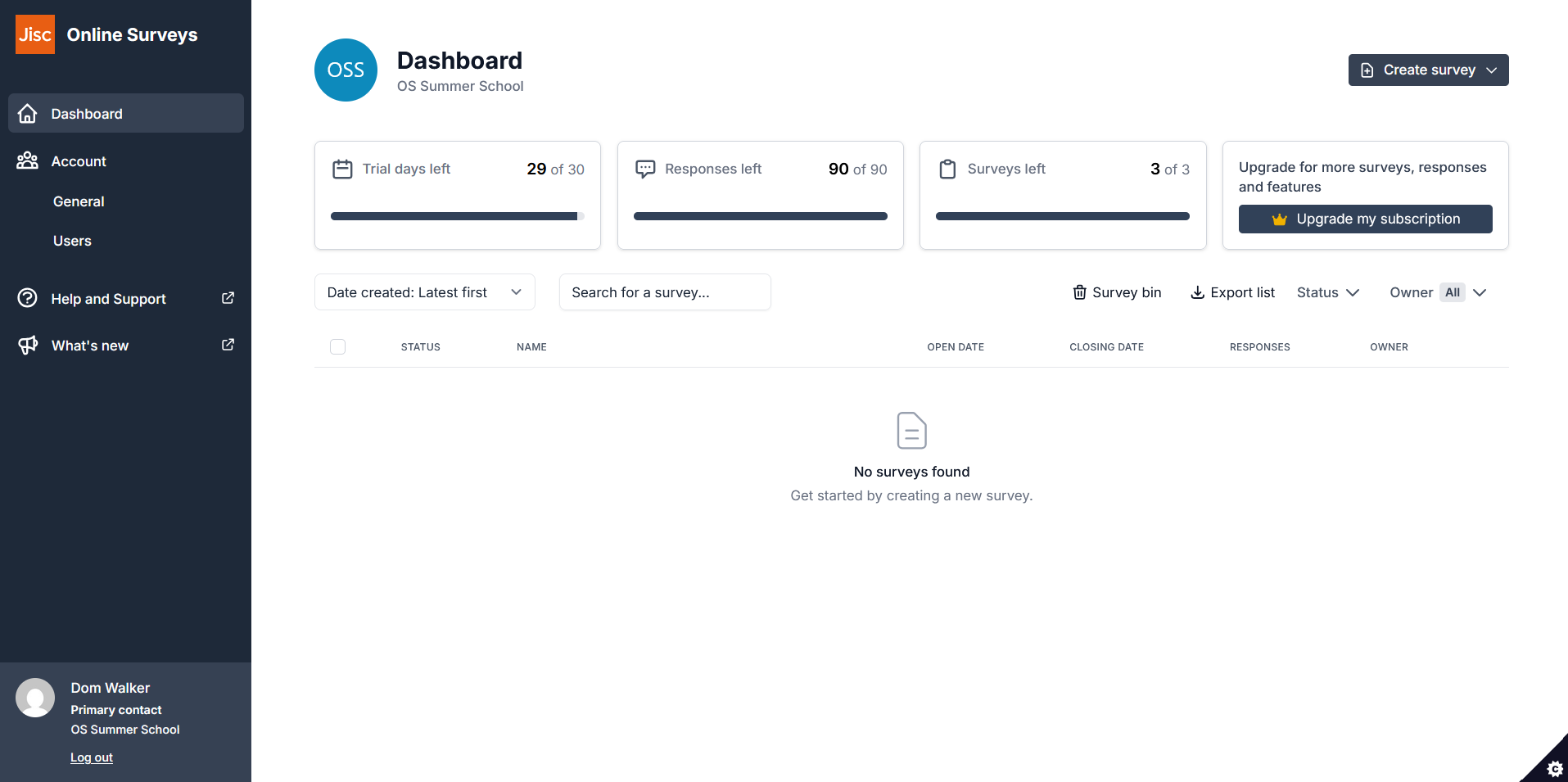
Click Create survey to get started with your first survey, and give it a name. You’ll automatically enter the survey Build area, which is where you’ll spend most of this week.
Surveys are made of pages, and pages hold questions. Pages are the unit of navigation for your respondent. They’re important for user experience and – as we’ll see next week – they are the unit that page logic operates on.
As a rule of thumb, group questions that belong to the same topic on the same page, and start a new page when the subject changes. A respondent who can see that they’re on page 2 of 4 well-structured pages may behave very differently from one facing a long page of disjointed questions.
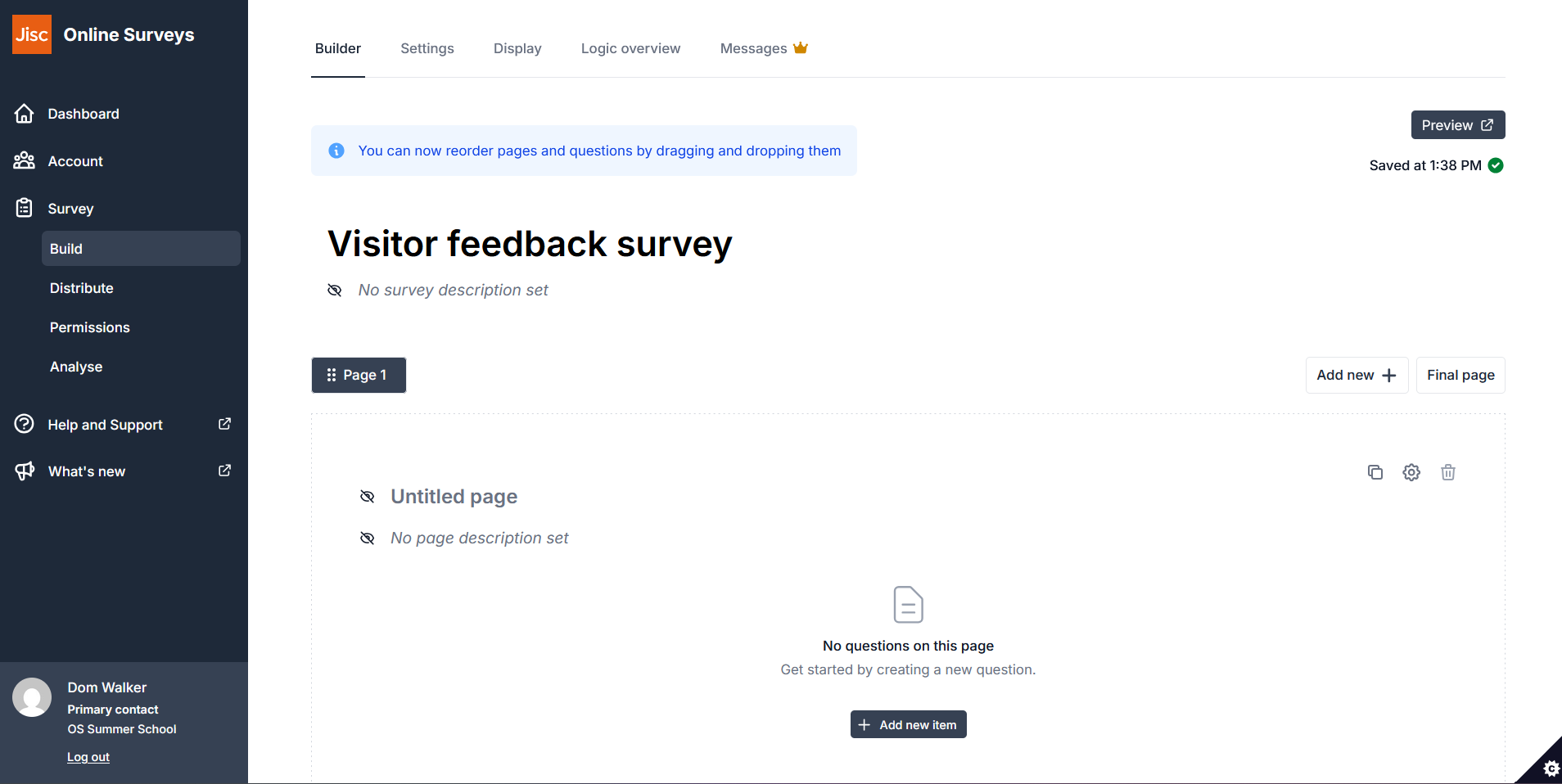
Add your first question with the Add new + button. The menu that opens shows you every question type available.
Choose a question type based on what you’re going to do with the answers.
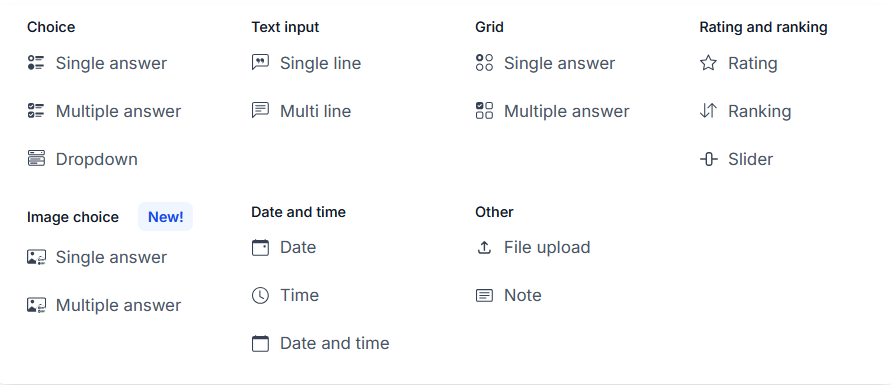
Choice (single answer) is your workhorse. This asks participants to choose one option from a list. Use it whenever the categories are mutually exclusive. For example: “Which one of these options best describes you?”
Choice (multiple answer) works best when categories are not mutually exclusive, or for personal questions where people don’t fit into one box. Bear in mind that this data can be harder to summarise: your percentages may add up to more than 100, which could confuse people in reports. For example: “Which of these events did you attend?”
Choice (dropdown) does the same job as a single-answer choice question, but collapses a long list. If you have more than about eight options (eg job roles, departments, sites, countries), a dropdown keeps the page readable. If you have under eight options, it’s preferable to leave the options visible: people answer faster when they can see the options.
Image choice (single/multiple answer) essentially gives you the same data as the single/multiple choice questions above, but allows you to provide answer options in visual form. This is an ideal question choice when you really need to offer visual options to participants, such as ‘which exhibition layout do you prefer’ or ‘which of these locations did you see on your visit today’?’ This question type is not available in the free trial.
Grid (single/multiple answer) asks several things that share the same answer scale, laid out as a table. “How would you rate each of the following?” or “How much do you agree with the following” are classic survey questions. Grids are efficient and respondents generally like them, but keep them short. A grid with fourteen rows is where people give up and they may start ‘straight lining’ (clicking the same column all the way down without reading the question).
Rating questions let someone evaluate a single statement on a visual scale (numbers, stars or smilies). Choose the format for your audience: smilies could work well with younger respondents and in public-facing settings, numbers are better when you’re going to report an average.
Ranking questions ask people to put items in order of preference. These are enormously useful when you’re prioritising, eg “Rank these five improvements” tells you more than asking whether each one is important separately because it forces a decision. Keep the list to about five items – ranking ten things is hard work.
Text input (single line/multi line) provides you with free-text questions. Use single line for short factual answers, and multi line when you want a detailed comment. Resist the urge to add “Any other comments?” to the end of every page. One well-placed open question that people actually answer beats four that they skip at the end of the survey.
Date and time gives you an option where you need a real date rather than someone’s approximation typed into a text box. It saves you a cleaning job later.
File upload (not available in the free trial) lets respondents attach an image or a PDF. This one opens up different kinds of surveys, such as photographs of a site issue for a council, evidence submissions for a consultation, or images of work for an arts programme. Do think about the data protection implications before you use it, and tell respondents what you’ll do with what they send in to you.
Notes (not available in the free trial) let you insert text blocks, hyperlinks and images into your survey. Perfect for extra contextual information for your participants (eg a participant information sheet or privacy policy) or to provide some signposting before a more complex or difficult question.
Each question has a required answer toggle, and there’s a cog icon that opens its properties – where you’ll find question descriptions, validation, and the logic and pre-population settings we’ll come to later in the series.
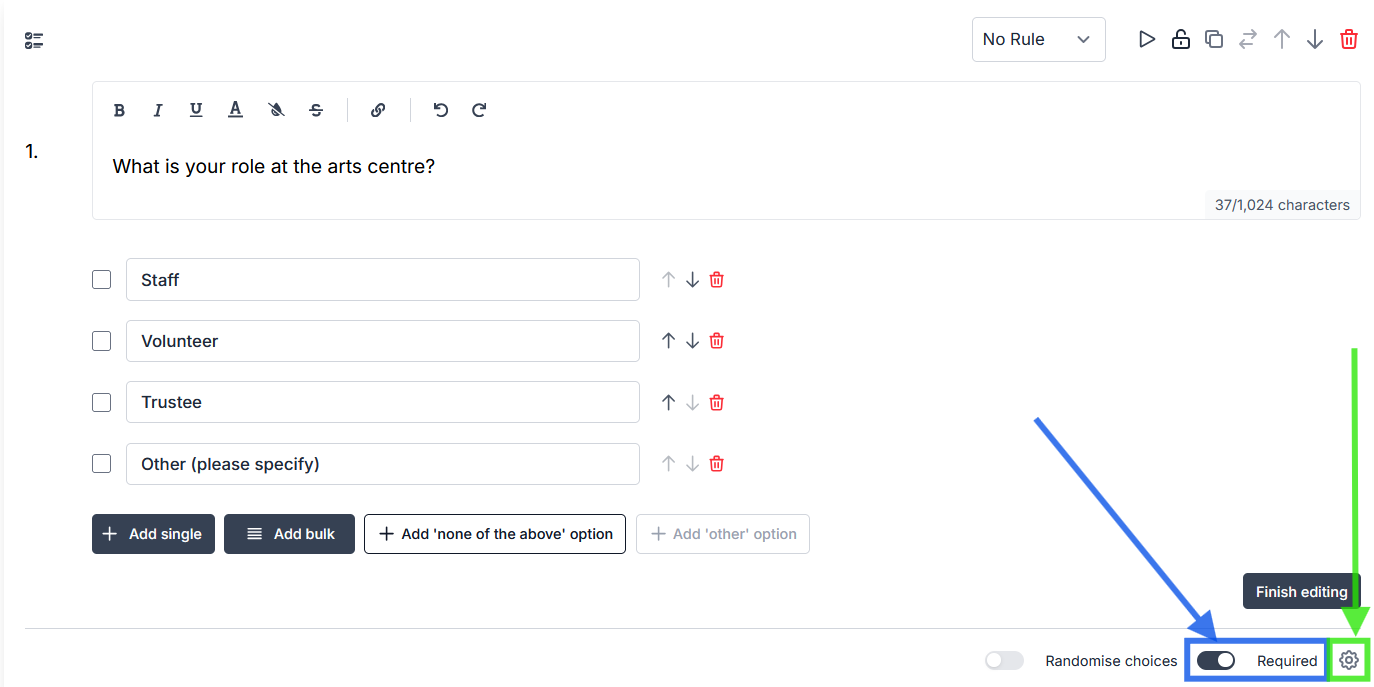
Use ‘required’ sparingly. It’s right for the one or two questions your whole analysis hinges on. It’s not ideal as a default, because a forced question that someone can’t honestly answer is a wall, and a meaningful proportion of respondents will simply close the browser tab.
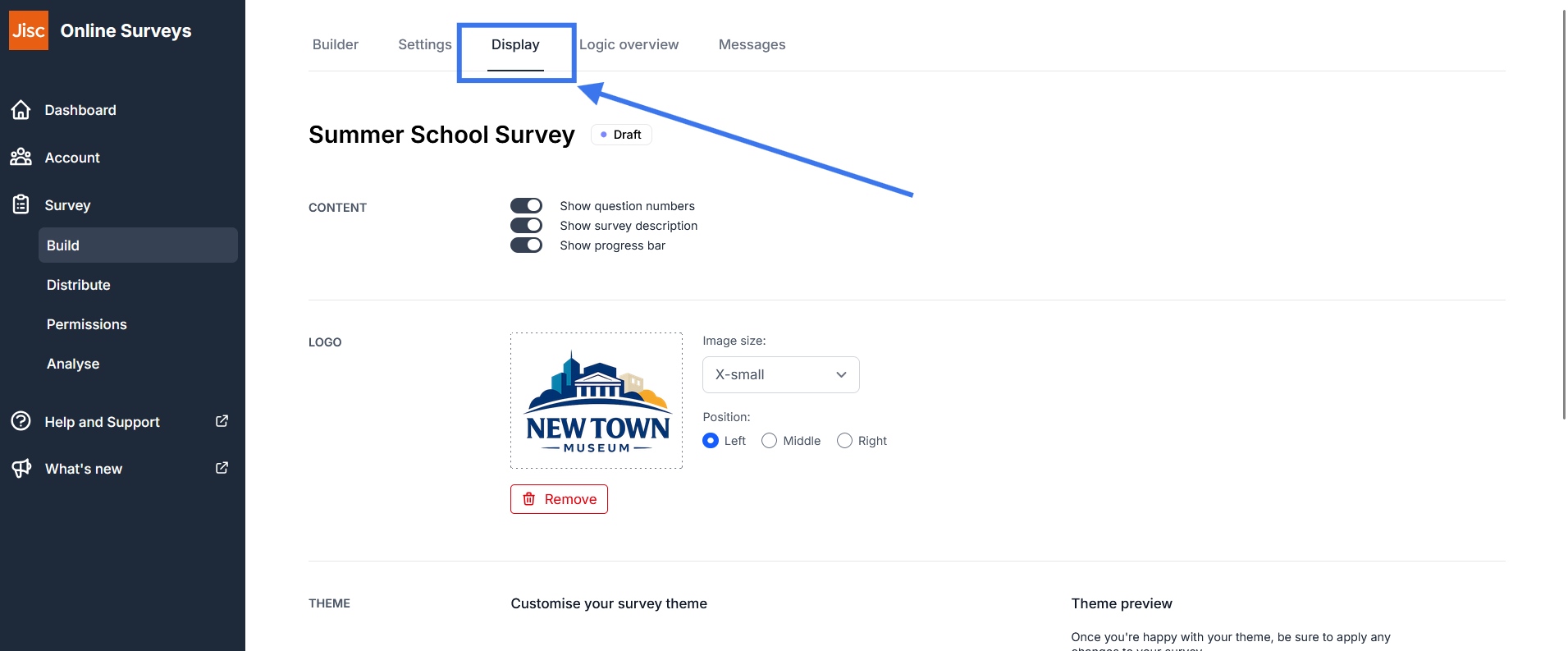
Under the display tab within the survey builder you can add your logo or set theme colours to match your organisation, and show the question numbers (not available on the free trial).
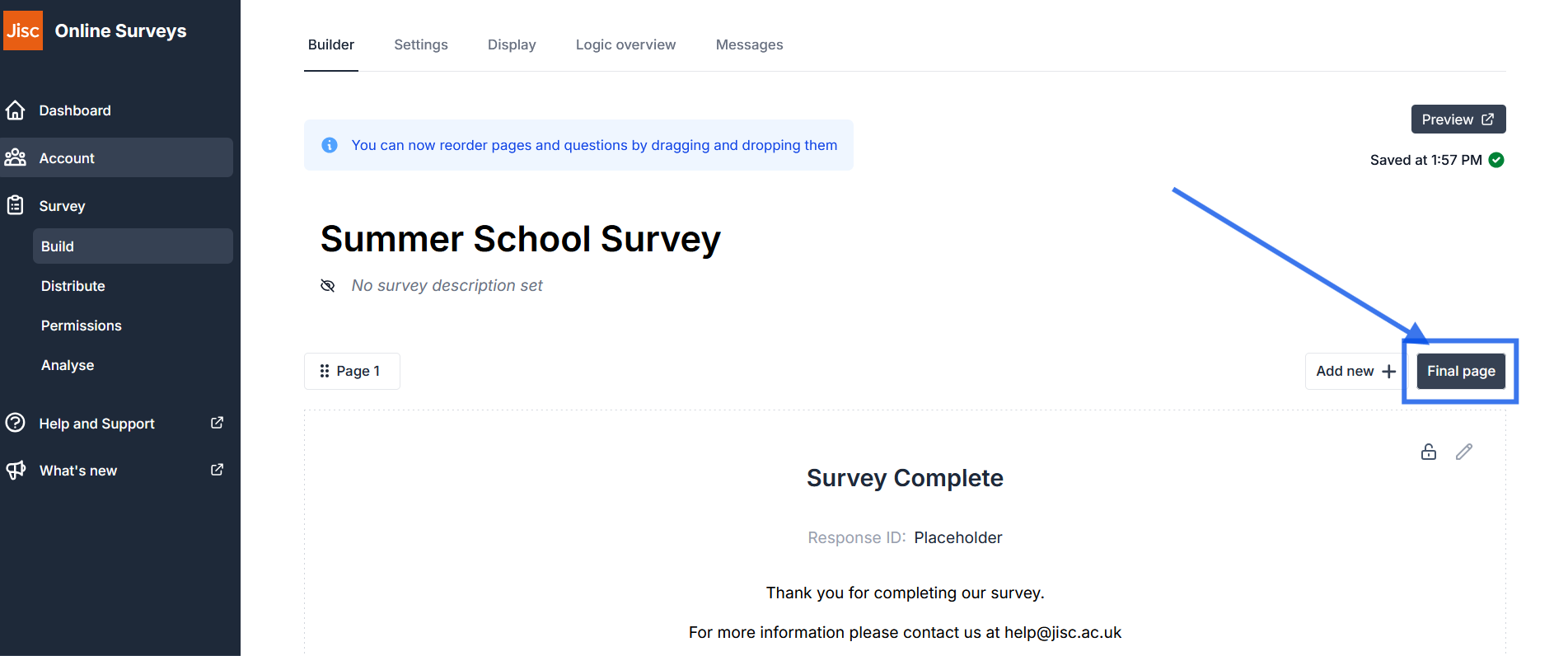
Within the main survey builder tab you can set a custom thank you message on the Final Page (not available on the free trial).
Why is this important? Response rates can be a trust problem. A survey that visibly belongs to the college, museum, charity or council gets taken more seriously than a generic form on an unfamiliar domain – particularly when you’re asking people for anything sensitive.
While you’re there: turn the progress bar on. Telling people how much is left is a simple way to help improve completion-rates.
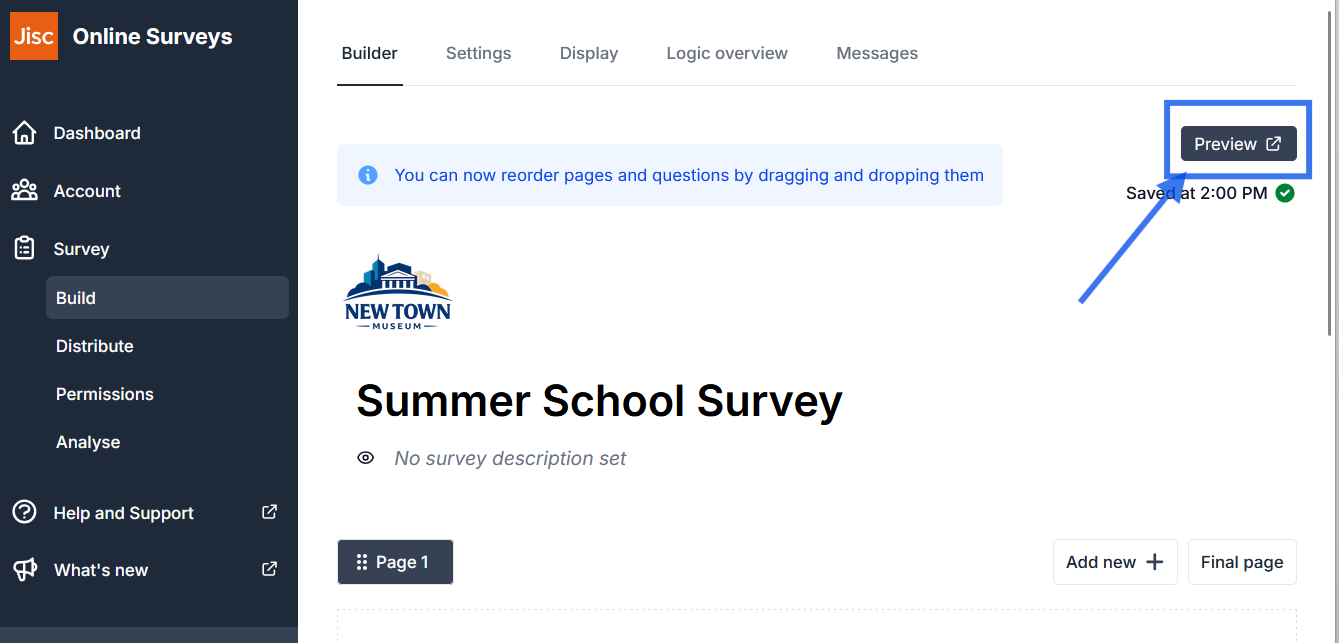
Use the preview to complete your own survey as a respondent, on your phone as well as your desktop. You will find something to correct!
You can easily login to Online Surveys on your phone, enter the survey builder, and click preview.