Online Surveys > Blog > Survey Summer School, week two: don’t even ask!

Survey Summer School, week two: don't even ask!

The second in a five-week series to help you get the most out of your Online Surveys free trial or subscription.

Last week you built a short, clear survey with a decision behind it. This week we’re going to make it shorter for every single person who fills it in using logic.

The problem logic solves

Often, respondents don’t abandon surveys because they’re long. They abandon surveys because they’re irrelevant.

A volunteer who has been with you for ten years will happily answer twenty questions about their experience. But if you ask them four questions about the long-forgotten induction process they went through in 2016, you’ll lose them – not because you asked four questions, but because you asked four questions that had nothing to do with them.

Logic is the fix. It lets you build one survey that behaves like several, showing each person only the questions that apply to them.

What logic actually does

Logic displays a page, a question or a note to a respondent only if they answered an earlier question in a particular way.

It can work in two ways:

Question logic shows or hides an individual question, or a note. This is a precision tool which you can use for follow-ups and clarifications.

Page logic shows or hides a whole page. This can transform long surveys. If you have six questions that only matter to one group of respondents, put them on their own page and show that page to that group.

Setting up question logic

Say your visitor survey for a UK-based museum opens by asking where visitors have travelled from – the UK or abroad. You would like to know which country they have travelled from, so you want a free-text box asking them to specify the country (or a drop-down choice question with a list of countries). But you don’t want everyone else staring at an empty box that doesn’t apply to them.

Here’s how:
1. Add your follow-up question – a single-line text question or a drop-down choice question – immediately after the source question
2. Click the cog icon on that follow-up question to open its properties
3. Expand the Logic section
4. Choose the question that determines the logic, your “Where did you visit from (UK/abroad)?” question
5. Select a rule: equals, does not equal, any of, or none of (in this case, equals)
6. Select the answer option the rule applies to (in this case, ‘abroad’)
7. Click Finished.

Click Finished, and a small jigsaw piece icon appears on the question to remind you that logic is applied.

The four rules, and when to reach for each

Equals and does not equal work on a single answer option. Use equals for the classic follow-up. Use does not equal for the inverse – showing a question to everyone except one group.

Any of and none of work on multiple answer options at once, and they’re where the real power lives. Any of lets you show a question to several groups without building three near-identical questions: show the “how was the training?” question to anyone who selected staff, volunteer or trustee. None of is excellent for catch-alls.

Most people discover equals and stop there. It’s worth spending ten minutes with any of – it usually halves the number of logic rules you need.

Setting up page logic

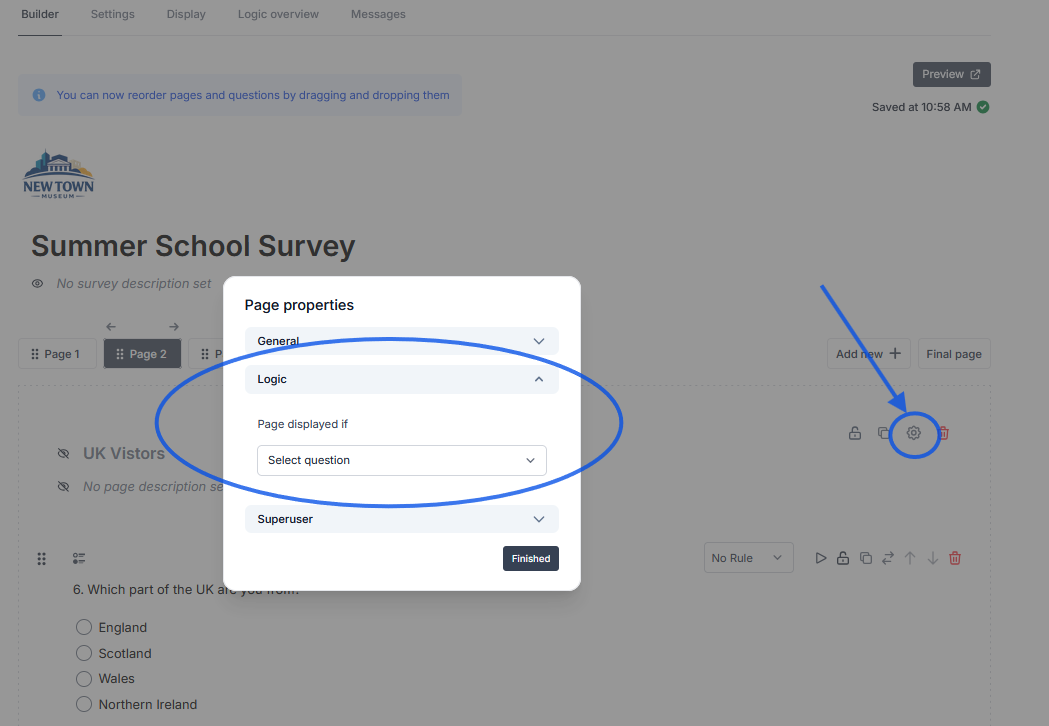
Page logic works identically, but you open the properties of the page rather than the question:

  • Click the cog icon at the top of a page
  • Expand the Logic section
  • Choose the determining question, the rule, and the answer options
  • Click Finished
Screenshot of page logic dialogue box
Page logic settings

There is a design implication here: if you’re going to use page logic, plan your pages around your groups. Don’t scatter volunteer-specific questions across four pages and then try to hide them one at a time so they don’t appear for respondents who are paid employees. Put them together, on their own page, and create logic to display the page to the relevant people.

This is a change that can take a survey from feeling like a form to feeling like a conversation.

Two rules you need to know

There are two constraints:

Grid questions can’t be used to determine logic. You can apply logic to a grid question, but a grid can’t be the source question (i.e. the question that determines whether a later question/page will appear or not). If you would like a piece of information to steer a route through your survey, ask it as a choice question, not as a row in a grid.

You can’t apply page logic to your last numbered page. Everyone needs to reach that page in order to submit. Design the end of your survey so the final page contains something universal, such as a general comments box or a question everyone can answer.

Notes can have logic too

This is the underused trick of the week. A note field allows you to place a block of text in your survey. And because logic can be applied to notes, you can show different information to different people at exactly the moment it’s relevant. Some examples:
  • Signposting. A respondent selects that they had a poor experience, and a note appears with details of who to contact if they’d like to raise it formally. This could be useful if you are gathering feedback in a duty-of-care setting
  • Context. Show a short explanation of a policy only to the respondents who are about to be asked about it, so everyone else isn’t wading through it
  • Reassurance. Show a note about anonymity and data handling to the group being asked the more sensitive questions

If you work in a college, a charity or a healthcare setting, that first one matters. Surveys could surface disclosures, and a logic-driven note is a quiet way of making sure someone who needs support knows where to find it.

Screening people out

There’s a related feature worth knowing about: you can screen respondents out based on their answers, ending the survey for people who are not eligible.

This is useful if you are undertaking a consultation restricted to residents of a particular ward, or a survey aimed only at people who used a specific service. Rather than collecting responses you will have to filter out later, you can establish eligibility in question one.

You can do this in the question settings (entered via the cog icon). Instead of Logic using the Screening options in the same way.
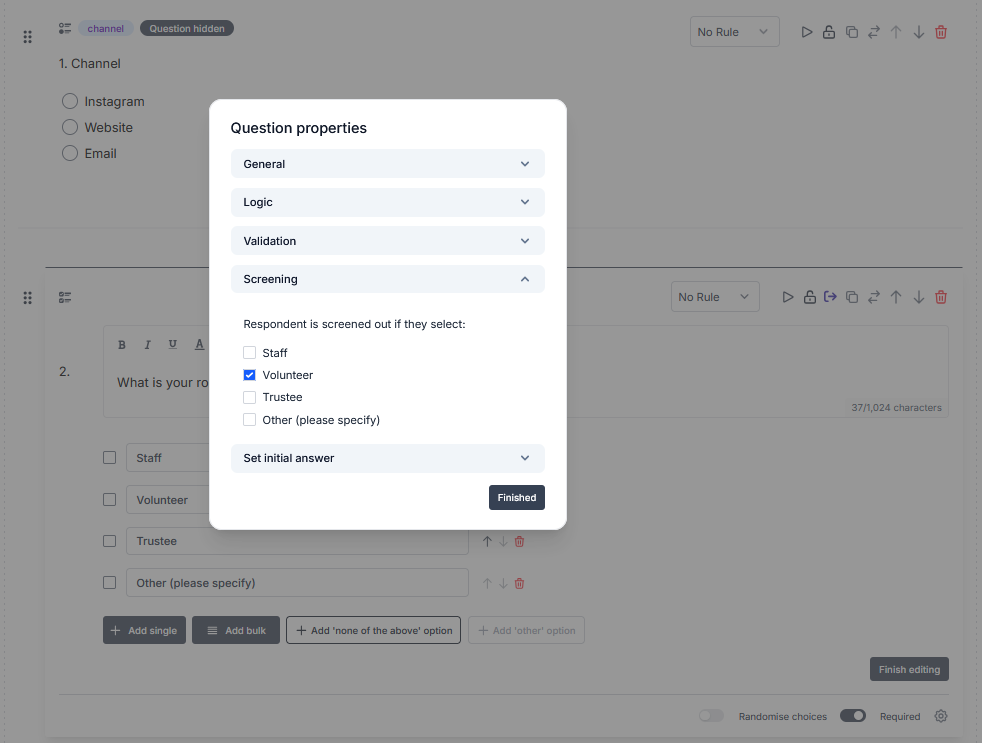
screenshot of screening dialogue box
Screening options

Testing

Logic is worth testing to avoid your survey producing the wrong data. You don’t want a page that shows to nobody or a question that appears for the wrong group.

Test the survey by the different routes. Open the preview and complete the whole survey as a student. Then again as a staff member. Then again as a volunteer. Then again as the awkward respondent who ticks four boxes in a multi-answer question. Click all the way through to submit each time.

Ask a colleague to do the same without telling them what the routes are. They’ll take a path you didn’t think of.

You can also check the logic you have applied across your survey by consulting the logic overview tab in the Survey Builder.

Beyond the trial

Logic is available in the free trial, so build away.

Where the trial’s 30-response cap may limit you is in what you can learn from a branched survey. Every branch splits your sample. If you have branches determined by logic, you need enough respondents for the branches to be meaningful in a live survey. A full subscription gives you up to 20,000 responses per survey, which is what makes a properly routed organisation-wide survey work.

For now, use your 30 responses to check that every route behaves, not to draw conclusions from them.

Your 15-minute task

  • Add a follow-up question to one of your existing questions from last week’s activity, eg a choice question or a single-line text box, and use question logic to hide it from some respondents
  • Identify one group of respondents in your survey who need questions nobody else does. Move those questions onto their own page and apply page logic to it
  • Add a note that only appears for one group
  • Preview your survey once for each possible route, all the way to submit

Check out our example survey.

Next week

Logic changes which questions people see. Next week we’ll change what the questions say, using a respondent’s own answers, live, inside later questions. This is called piping, which takes about a minute to set up, but can make a survey feel like it’s actually listening.

Full guidance on question and page logic is in the Online Surveys help pages.