
Online Surveys > Blog > Survey Summer School, week three: make your survey look like it’s listening

Survey Summer School, week three: make your survey look like it's listening

The third in a five-week series to help you get the most out of your Online Surveys free trial or subscription.

Last week we used logic to control which questions people see. This week we’re changing what the questions say by dropping the respondent’s own answers into them, live, as they go.

This is called answer piping. It takes about a minute to set up and can make a survey feel like it was written for the person filling it in.

What piping does

Piping takes a respondent’s answer to one question and displays it somewhere later in the survey. You can pipe an answer into:

  • the text of a later question
  • a note that comes later in the survey
  • the final page

The difference it makes is easiest to see side by side. Where someone is asked which training session they attended, a follow-up question could be as follows:

Without piping:

Q4. You said you attended one of our sessions. What did you find most useful about it?

With piping:

Q4. What did you find most useful about the Introduction to Digital Skills session you attended?

The second question will get better answers. People will write more because they’re being asked about a real event rather than an abstract event.

How to set it up

You need two things: a source question, and a target.

The source is the question whose answer you want to reuse. It just needs to come earlier in the survey than the target.

The target is where the answer will appear in the question text.

To create the link, put your cursor in the target text exactly where you want the answer to appear, and type two opening curly brackets, the question number, and two closing curly brackets: e.g. {{Q1}}

So your target question text might read:

What did you find most useful about the {{Q3}} session?

Place your cursor inside the brackets after adding the placeholder and a menu opens showing you which source question you’ve selected, so you can change it if you’ve written the wrong one.
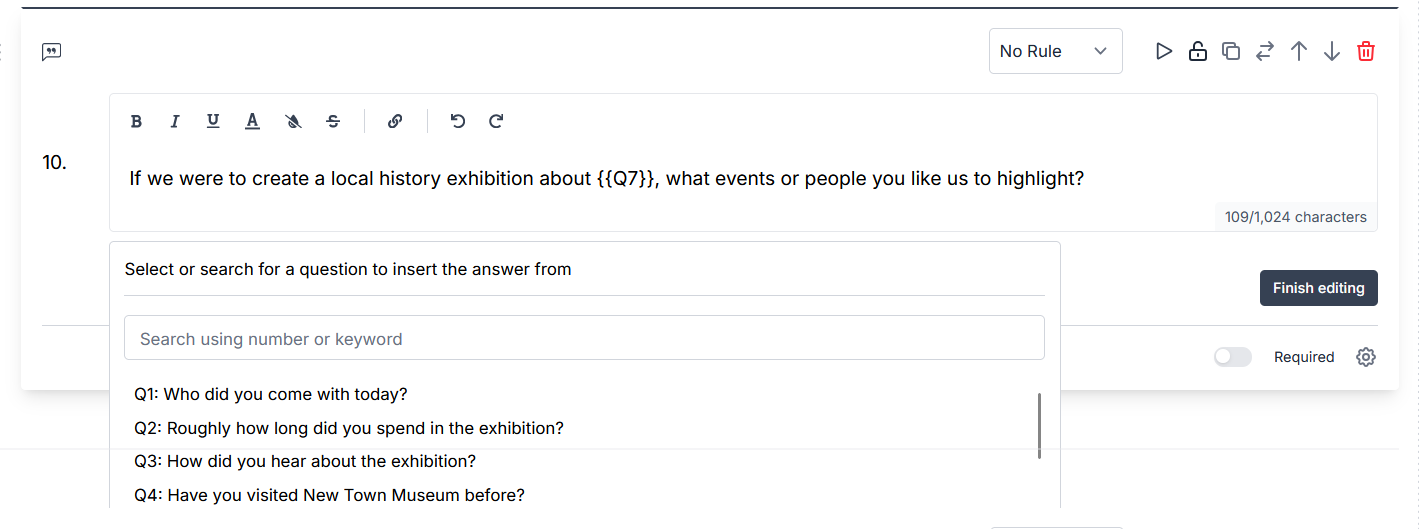
piping dialogue box in lone surveys
The piping dialogue box

The source and target can sit on the same page or on different pages. The only firm rule is that the target has to come after the source (you can’t display an answer that hasn’t been given yet).

Only apply piping once your survey build is finished.

Piping references questions by their number. If you add, move or delete a question in a way that changes the numbering, your piping will not update to follow it. Your {{Q3}} will keep pointing at Question 3 which could now be a different question entirely.

Consider making your source question required

The target question or note only displays if the respondent answers the source question. That means that if your source question is optional and someone skips it, they won’t see the follow-up question. This is okay for most surveys, but if you need a response, you’ll want to make the source question required.

When piping is valuable

The tailored thank you page. Pipe the respondent’s name, or a chosen area of interest, into the final page and tell them specifically what happens next. It costs you nothing and it’s the last thing they read.

Confirming what they told you. In a longer survey, pipe an earlier answer into a later note: “Earlier you told us you’d used {{Q2}}. The next few questions are about that service.” This can help to orient people, and reduces the chance that the participant doesn’t know what you’re referring to, which could otherwise produce muddled answers in the second half of long surveys.

Making open questions specific. Generic open questions get generic answers. Pipe in the specific service, session, exhibition or issue the person named earlier and the quality of your qualitative data will increase. If you’re going to quote respondents in a report, this is how you can get quotes worth quoting.

Combining with logic. Piping and last week’s logic work great together. Logic decides whether someone sees a question; piping decides what it says. A survey using both can serve multiple audiences from a single build, and each of them feels like they got a bespoke survey.

A related feature worth knowing about

Pre-population fills in an answer when the respondent loads up the survey, using information you already hold about them.

If you already know which college someone attends, or which service they used, or which ward they live in, you don’t need to ask. You can pre-populate it, which means a shorter survey for them, cleaner data for you, and a piece of information you can immediately pipe into later questions.

Pre-population needs a way of knowing who is arriving, and that means distributing your survey to a known list of people rather than a public link (which is what we will look at next week).

Test it in preview

Piping errors are invisible in the survey builder. The placeholder looks correct sitting there in your question text; you only find out what it does when someone answers.

Open the preview and complete the survey properly, clicking through every page to the end.

Beyond the trial

Piping is available in the free trial, so build with it freely.

Pre-population is where a subscription changes things, because it depends on distributing your survey to an uploaded respondent list. That’s the difference between “tell us which department you work in” and already knowing.

For a large organisation that’s not a nicety. A staff survey that already knows someone’s site, department and role removes three questions from the survey, eliminates inconsistent free-text spellings you’d spend a morning cleaning, and lets you break your results down accurately.

Your 15-minute task

  • Check your survey build is finished. Piping goes last
  • Pick one open text question that could get generic answers, and pipe an earlier answer into it
  • Pipe a question into your final page
  • Preview the whole survey, on every logic route, all the way to submit.

Next week

Your survey is built, routed and personalised. Now you have to get it in front of people, which is where most of the response rate is won or lost.

We’ll cover launching, scheduling, public links and QR codes, and the paid feature that changes distribution most: email lists with unique links per respondent.

Full guidance on answer piping is in the Online Surveys help pages.