In this article
Image choice questions
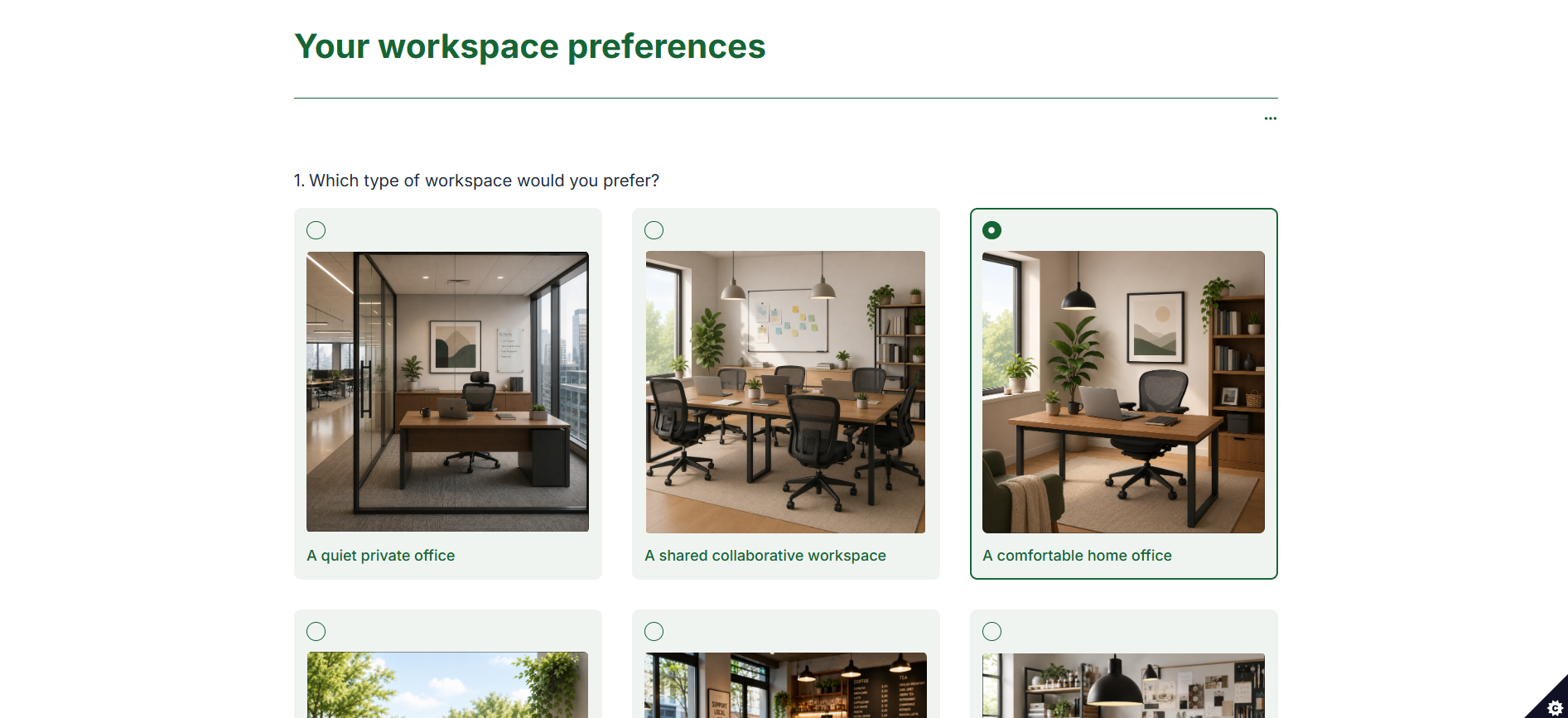
An Image choice question allows respondents to answer by selecting one or more images.
You can use Image choice questions to collect visual preferences, compare designs, identify objects or let respondents choose between options that are easier to understand visually.
Adding an Image Choice question
To add an Image choice question to your survey:
- Click the Add new item button on your survey page.
- Under the Image choice category, select either Single answer or Multiple answer.
- Enter your question text.
- Upload an image for each answer option.
- Enter an option label and alternative text for each image.
- Click Add image option to add more choices.
- Click Finish editing.
Choosing single or multiple answers
There are two types of Image choice question.
Single answer
A Single answer Image choice question allows the respondent to select one image.
Use this when the answer options are mutually exclusive or you want the respondent to identify their preferred option.
Multiple answer
A Multiple answer Image choice question allows the respondent to select more than one image.
Use this when respondents may have several applicable preferences or when more than one answer can be correct.
Adding image options
Each answer option contains an image, an option label and alternative text.
Upload an image
Click the image upload area and select an image from your device. You can also drag an image into the upload area.
The following image formats are supported:
- PNG
- JPG or JPEG
- WebP
- GIF
The maximum file size is 2 MB per image.
To replace an uploaded image, click or drag a new file onto the existing image.
For the clearest layout, use images with consistent dimensions and aspect ratios.
Add an option label
The option label appears beneath the image and identifies the answer in the survey and its results.
Labels should be short and clearly distinguish one option from another
Add alternative text
Alternative text describes the meaning and context of the image for respondents who use a screen reader or cannot see the image.
Describe the relevant visual information that a respondent needs to understand the answer option.
Do not use filenames as alternative text. Avoid beginning with phrases such as “Image of” or “Picture of”, as screen readers already identify the content as an image.
The option label and alternative text serve different purposes. The label names the choice, while the alternative text communicates the relevant content of the image.
Question settings
There are two handy toggles at the bottom of the question editor to customise the question in the following ways:
Analysing your results
Analyse overview
Responses to an Image choice question are grouped by answer option.
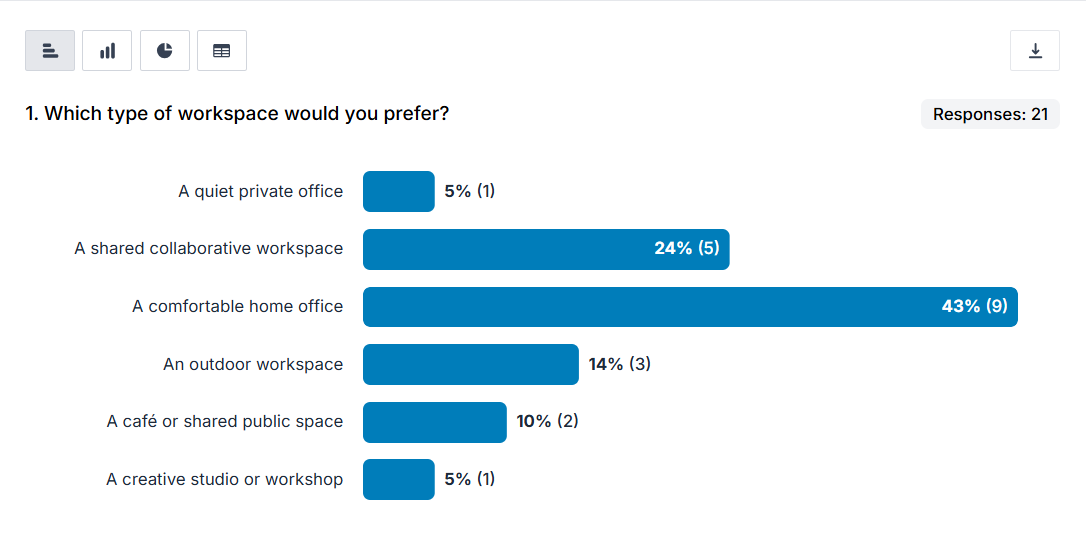
The results show how many respondents selected each option and the percentage of respondents represented by each choice. Options are identified by their option labels.
For a Multiple answer Image choice question, respondents can select more than one option. The total number of selections may therefore be greater than the number of respondents who answered the question.