
In this article
Survey questions
This article explains the different question types Online Surveys offers and how to add them.
Adding a question
To add a question, click the Add new item button on a page of your survey.
This will expand a menu with all of the available question types.
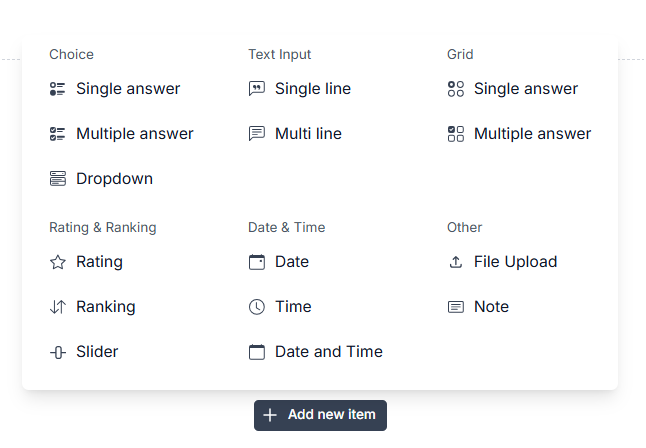
Question types
| Question type | Description |
|---|---|
| Choice (single answer) | A multiple-choice question where respondents can select one option from a list.. |
| Choice (multi answer) | A multiple-choice question where respondents can select one or more options from a list. |
| Dropdown | Allows respondents to choose one answer from a dropdown list. |
| Grid (single answer) | A grid question where respondents select one option per row from the same set of column choices. |
| Grid (multi answer) | A grid question where respondents can select multiple options per row from the same set of column choices. |
| Image choice (single answer) | A multiple-choice question where respondents can select one image. |
| Image choice (multi answer) | A multiple-choice question where respondents can select one or more images. |
| Rating | A closed-ended question type that lets respondents evaluate a statement on a visual scale of numbers, stars, or smilies. |
| Ranking | A closed-ended question type that asks respondents to compare items to each other by placing them in order of preference. |
| Slider | A closed-ended question type that asks respondents to compare items to each other by placing them in order of preference. |
| Single line | A free text question, which allows respondents to enter their answer into a text box that is restricted to one line of text. |
| Multi line | A free text question which allows respondents to provide longer answers. |
| File upload | Allows respondents to upload images or a PDF with their response. |
| Date and Time | Date and time questions allow you to ask a question that needs the respondent to provide a date and/or time as a response. |
Editing questions
After adding a question, you can edit them at any time, but you should be careful making changes after you have launched and distributed your survey. See our Editing a launched survey article for guidance.
Below are the editing actions that can be taken for a question:
- Delete: Deletes the question
- Move question up: Moves the question above the previous question.
- Move question down: Moves the question below the next question.
- Move question to another page: Allows you to move your question to another page in your survey.
- Duplicate question: Creates a duplicate of your question below.
- Required answer toggle: Allows you to make your question compulsory.
- Question properties: Opens settings for adding q question description, logic, pre-population and validation.